
It's Tuesday afternoon. You just received a 20-page PDF set of plans and the bid is due Friday. You print them out, grab your scale ruler, and start counting doors one by one. Or worse, you squint at the PDF on your laptop, trying to trace rooms with a mouse while your cursor slips for the third time.
This is how most residential contractors still do takeoffs. And it eats up hours that could go toward actually running the job.
Note
TL;DR: ScoutOut lets you upload any PDF floor plan and measure it directly in the browser. No CAD software, no printing, no scale rulers. For symbol counting (doors, windows, fixtures, outlets), the AI detects all matching instances automatically after you circle one example. This post walks through how it works, what it's good for, and where it has limits.
Note
Upload a floor plan and let ScoutOut measure it for you. No CAD software, no printing, no counting by hand. Start your free trial, no credit card required. Want to see the AI in action first? Book a demo.
Why Manual Takeoffs Cost More Than You Think
Manual takeoffs steal time from every other part of your business. A mid-size residential project can take 4 to 6 hours of careful measuring before you've written a single line item in your estimate. Professional estimating firms report that a hand takeoff that takes a full day can be reduced to 3 or 4 hours with digital tools. That's time back in your week on every single bid.
But the time problem isn't the only problem. Errors are worse.
A missed window count or a transposed square footage multiplies through every downstream material line item. Flooring, paint, trim, tile, insulation: they all cascade from a single measurement. Construction estimating errors cost the U.S. construction industry an estimated $273 billion annually, and experts say those errors account for up to 20% of total project costs. For a small residential contractor, one bad measurement on a kitchen remodel can wipe out the margin on the whole job.
Manual takeoffs also don't leave an audit trail. If a client disputes your count, or you need to re-bid a similar project next year, you're starting from scratch.
What Does a Digital Takeoff Actually Do?
Digital takeoff software replaces your printed plans, scale ruler, and manual counting with an on-screen workflow. You upload the PDF, calibrate the scale once by matching a known dimension on the plan, and then draw directly on the plan to measure. The software handles all the math automatically.
There are three types of measurements you'll use:
| Measurement Type | When to Use It | Example |
|---|---|---|
| Area | Rooms, slabs, roofing, flooring, tile | Kitchen floor (240 SF) |
| Linear | Framing, trim, plumbing runs, fencing | Exterior perimeter (148 LF) |
| Count | Fixtures, windows, doors, outlets, sinks | Bathroom fixtures (6 EA) |
For area, you draw a polygon around the space and the software calculates square footage from your scale. For linear, you trace a path and get the run in linear feet. For count, you click once per instance, or you let the AI do it for you.
The whole process happens in your browser. No software to install, no license to manage, no CAD training required.
If you're building your estimate alongside the takeoff, ScoutOut connects both. See our guide on how to write a construction proposal for how measurements flow directly into your client-facing documents.
How Does AI Symbol Detection Actually Work?
ScoutOut uses state-of-the-art computer vision to read your floor plans the way a trained eye would. You circle one example of the symbol you want to find, and the AI instantly locates every matching instance across the page. Doors, windows, electrical outlets, plumbing fixtures, recessed lights: whatever repeats on the plan, the AI finds it.
No calibration tools. No manual clicking through every room. You point it at one symbol and it handles the rest.
What Can ScoutOut Measure From Your Plans?
Between area, linear, and count measurements, ScoutOut covers the full scope of what residential contractors need to bid a job accurately. Upload a PDF, measure it in the browser, and pull those numbers straight into your estimate.
Note
Upload your next set of plans and try it free in ScoutOut. No CAD software. No printing. Start free at ScoutOut or book a demo to see it live.
From Takeoff to Estimate in One Click
Once your measurements are in ScoutOut, they feed directly into your estimate. Your square footage becomes a line item. Your fixture count becomes a line item. No re-entering numbers into a separate spreadsheet, no copy-pasting from one tab to another, no unit conversion math done by hand.
The takeoff is the estimate.
This matters because re-entry is where numbers get corrupted. A contractor who manually transfers measurements from a PDF markup into a spreadsheet introduces one more chance to transpose a digit or use the wrong row. Keeping measurement and estimate in the same system removes that failure point entirely.
For guidance on pricing those line items once your measurements are in, see our construction markup and pricing guide. And if you need a starting point for the estimate format itself, grab our free construction estimate template.
Frequently Asked Questions
Do I need to install any software to use digital takeoffs?
No. ScoutOut's takeoff tools run entirely in your web browser. There is nothing to download, install, or update. You need a current browser (Chrome, Firefox, or Safari) and your PDF plans. If you can open a Google Doc, you can use the takeoff editor. This is one of the main reasons contractors switch from desktop-based takeoff tools: no IT setup, no licensing headaches, and it works on a Mac or a PC.
What file types does ScoutOut accept for floor plans?
ScoutOut accepts standard PDF files for plan upload and measurement. Most plan sets sent by architects, designers, or municipalities come as PDFs, so you can upload them directly without any conversion. The system works on raster-image PDFs (scanned plans) as well as vector PDFs (digitally produced drawings). For best AI symbol detection results, plans produced digitally at a consistent scale tend to perform better than low-resolution scans.
How accurate is the AI symbol detection?
Very accurate on standard residential and commercial plans. The computer vision model is trained to recognize the kinds of symbols that show up on real construction drawings, and it handles the full range of what you'll encounter on typical projects. As with any takeoff, a quick review before you finalize is good practice, but you're checking a highlighted result set, not counting from scratch.
Can I use this on commercial plans, not just residential?
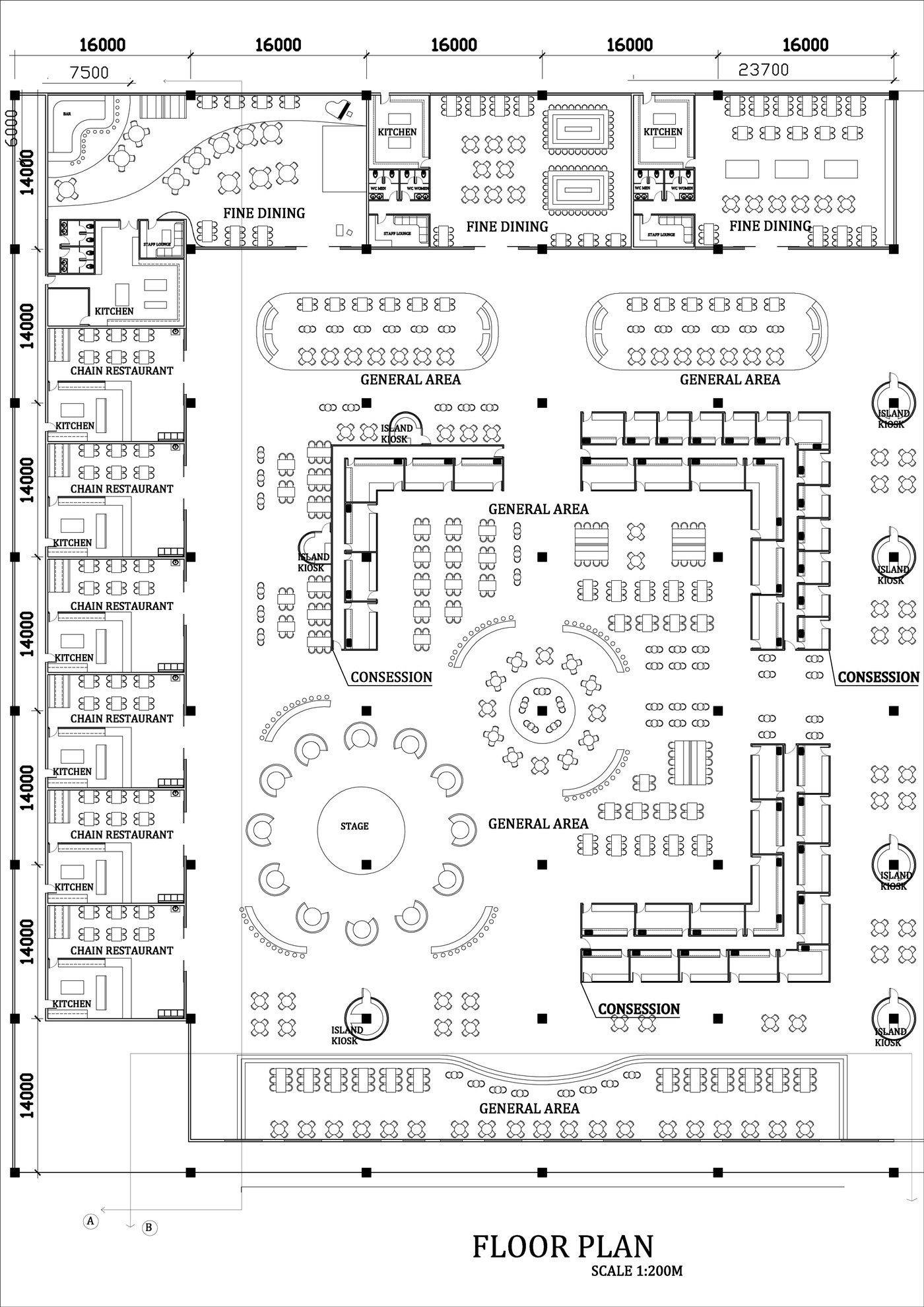
Yes. ScoutOut works with any standard PDF floor plan, residential or commercial. Upload the set, calibrate the scale, and the same AI detection that finds doors and windows on a house plan works just as well on a restaurant buildout, a retail space, or a light commercial remodel.
How long does a digital takeoff take compared to manual?
A manual takeoff on a mid-size residential project typically takes 4 to 6 hours when done by hand with a scale ruler or by tracing a PDF. Professional estimating firms estimate that a hand method taking a full day can be done digitally in 3 to 4 hours. With AI symbol detection handling repeated counts automatically, the time savings on count-heavy plans (lots of windows, fixtures, or outlets) are the most significant. Experienced users report completing small residential takeoffs in under an hour with digital tools, compared to half a day manually.
The next bid on your desk does not have to start with a printer and a scale ruler. Upload the PDF and let the AI do the counting.
Start your first digital takeoff free in ScoutOut, no credit card required. Want to see the AI in action first? Book a demo.